Enabling and Renewing SSL for Self-signed Certificates in ODH 3.4.0 and Later
Enable and renew SSL for self-signed certificates using Ambari. A self-signed certificate is created, signed, and issued by the subject of the certificate.
Note
For ODH versions earlier than 3.4.0, see Enabling and Renewing SSL for Self-signed Certificates in ODH Versions Earlier Than 3.4.0.
For ODH versions earlier than 3.4.0, see Enabling and Renewing SSL for Self-signed Certificates in ODH Versions Earlier Than 3.4.0.
Note
Enable/Renew SSL are the same in Big Data Service ODH, and if certificates are expired, the entire set of certificates must be regenerated using the regular SSL enablement process. We recommend creating a notification based on the certificate expiration time. For more information, see Creating an Alarm.
Enable/Renew SSL are the same in Big Data Service ODH, and if certificates are expired, the entire set of certificates must be regenerated using the regular SSL enablement process. We recommend creating a notification based on the certificate expiration time. For more information, see Creating an Alarm.
-
Select Configure Services.
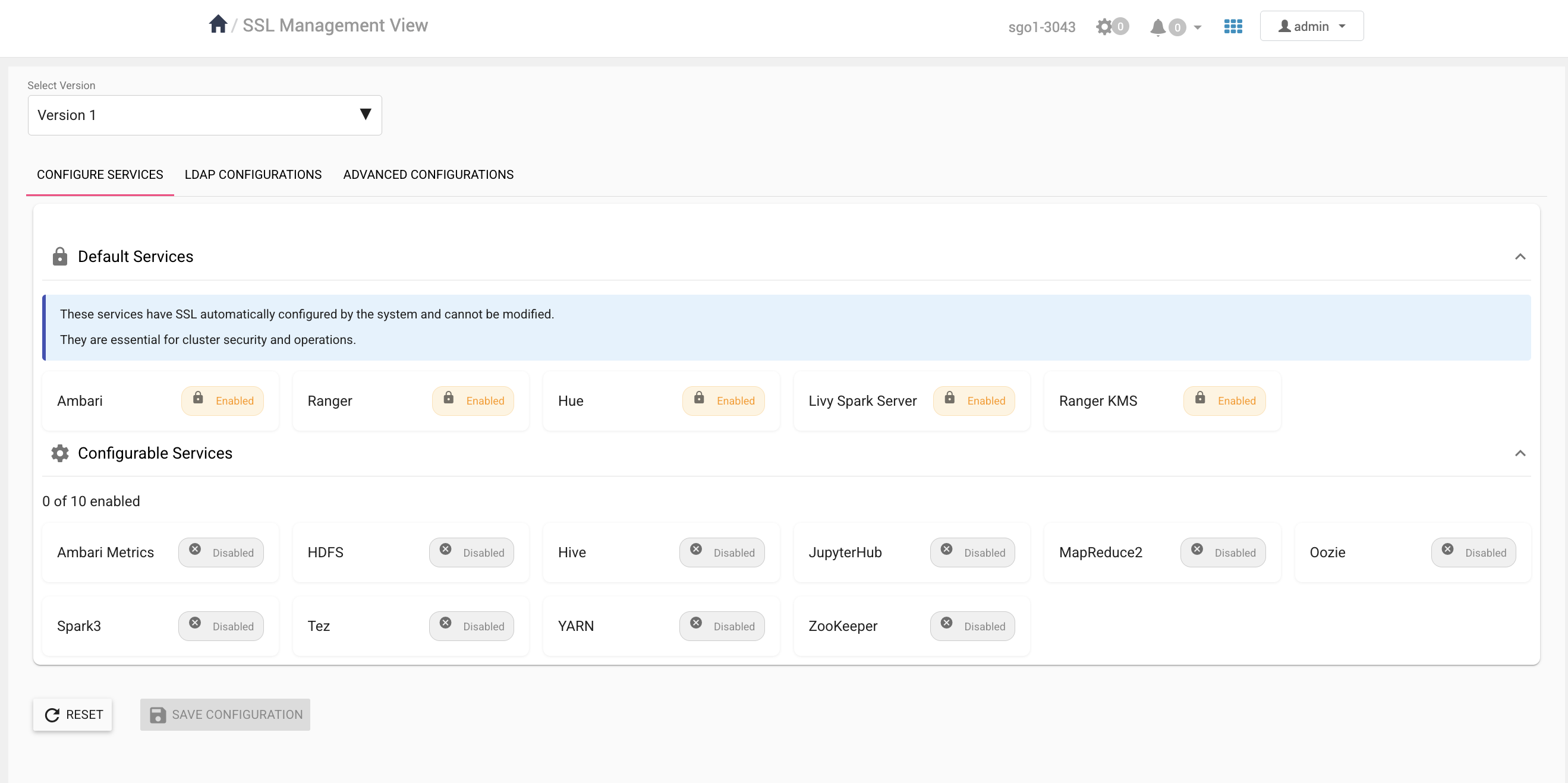
- (Optional)
To view or update SSL-related configuration properties, select Advanced Configurations.
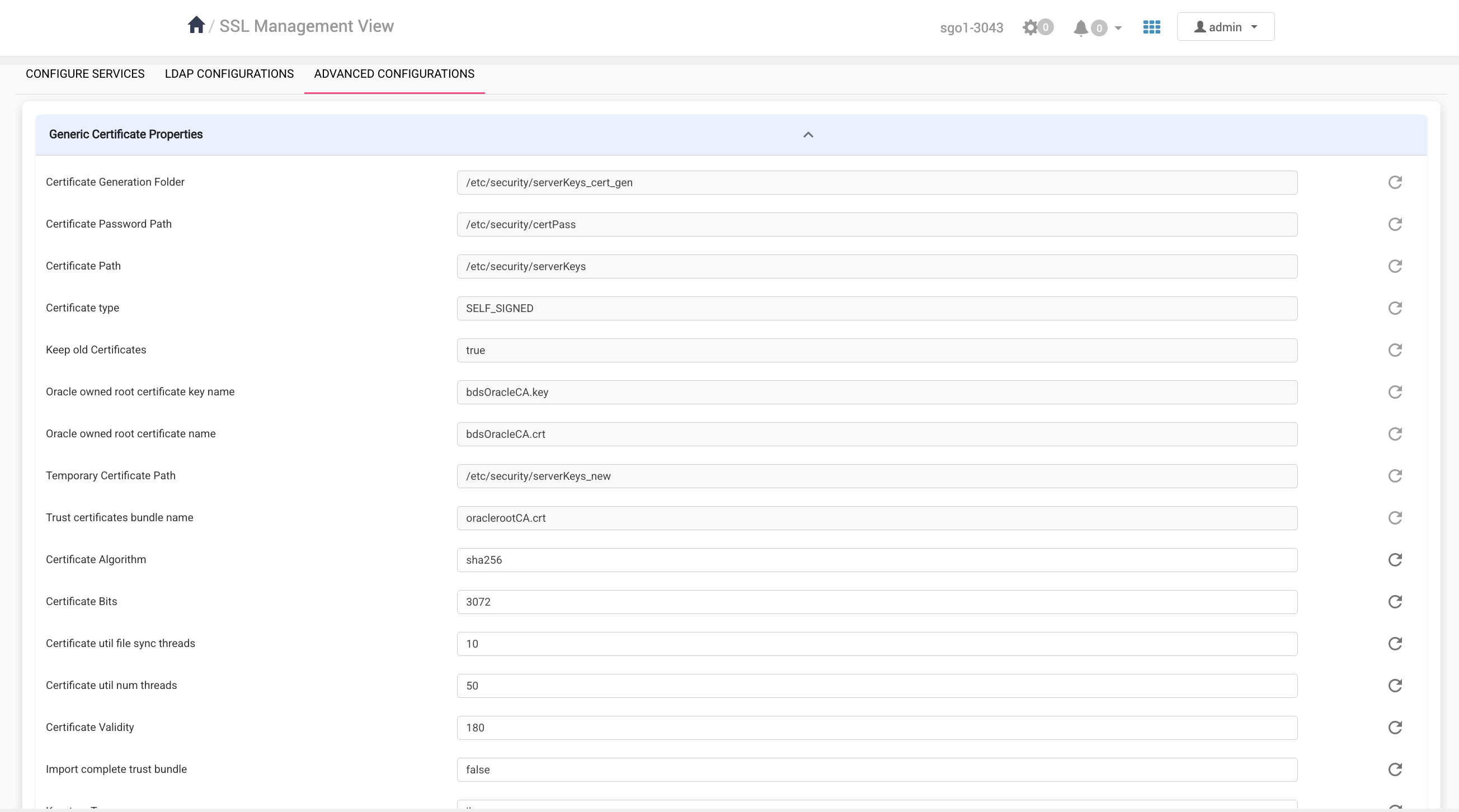
- (Optional)
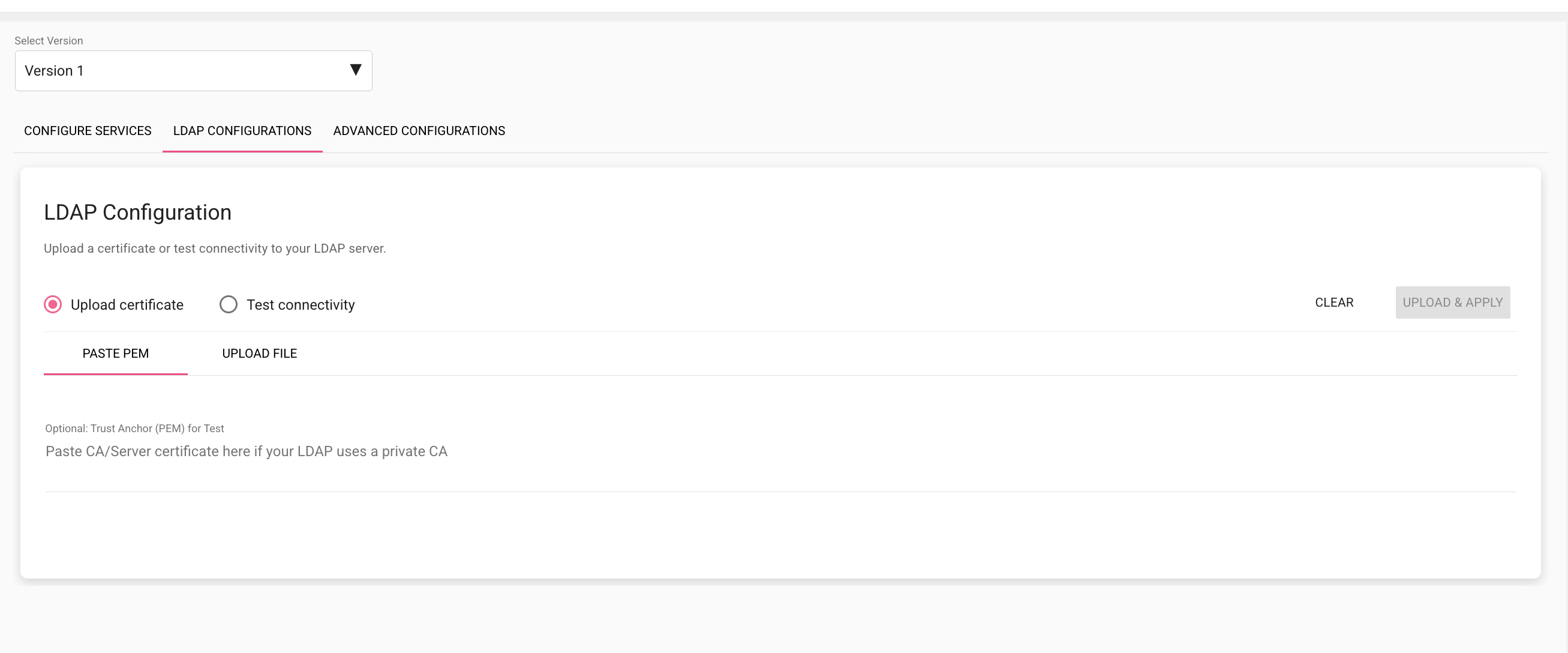
To import an LDAP certificate, or to test connectivity, select LDAP Configurations.
Enabling and Renewing SSL for Self-signed Certificates in ODH Versions Earlier Than 3.4.0
Use the Big Data Service certificate utility to generate self-signed SSL certificates for ODH clusters running versions earlier than 3.4.0.
Note
For ODH 3.4.0 and later, see Enabling and Renewing SSL for Self-signed Certificates in ODH 3.4.0 and Later.
For ODH 3.4.0 and later, see Enabling and Renewing SSL for Self-signed Certificates in ODH 3.4.0 and Later.
Note
Enable/Renew SSL are the same in Big Data Service ODH, and if certificates are expired, the entire set of certificates must be regenerated using the regular SSL enablement process. We recommend creating a notification based on the certificate expiration time. For more information, see Creating an Alarm.
Enable/Renew SSL are the same in Big Data Service ODH, and if certificates are expired, the entire set of certificates must be regenerated using the regular SSL enablement process. We recommend creating a notification based on the certificate expiration time. For more information, see Creating an Alarm.